Showing posts with label Tricks. Show all posts

How to view password behind Asterisks ( *** )

Most modern browsers offer the capability of remembering usernames and passwords.  Most of us use this feature to automatically save our usernames and passwords in order to log in to our favorite websites more quickly. What if you forget the saved username and password?

As web browsers intelligently hide passwords using stars (asterisks or dots), there is no way in which a user can recover his password by simply looking at what the browser shows. Here is a simple tricks that you can use to reveal your password for a website when you have forgotten it but your browser remembers it.

Just Drag and drop the Show Password to your browser Bookmark bar.


Whenever you want to see the password just click on the show password form Bookmarks.

Here take a simple example.

  • You forget you facebook password but your browser remember it.

  • So to reveal the password just click on Show Password to see your password.

  •  Now you can see your saved password so enjoy.


Read more >>

How to remove subtitles from movies


Today I'm going to share a wonderful trick to remove subtitles. Subtitles are very annoying when they are in
  different language or not perfectly sync. with the audio. So it's time to remove them.

Follow my steps :

  • First of all download this software from here and open it.
  • Now click on "add" to open the movie from which you want to remove subtitles.
  • In my case I want remove subtitles from Lord Of The Rings.
  • Now untick the subtitles file as shown in image below.

  • Now goto " Format Specific Option " to select the output folder.
  • Finally click on "Start Muxing" to remove subtitles.
  • Now got to folder where you have save your movie to watch it.

That's the End of tutorial hope you like it. For any query pls comment.

Enjoy......... 


Read more >>

How to convert dual audio movies to single audio without losing it's quality


As we all know that almost all movies we download contains dual audio. But like to watch movies in our mother language. So today I'm going to tell how you can convert dual audio movies into single audio without losing it's quality. 

Follow my steps :

1.  First of all download this software by clicking here and open it.
2.  Now click on " Add  " to put your Desired Video to be convert.


3.  Now Select any Movies that has Dual Audio.
4.  In my case I select The Avengers Dual Audio Movie


5.  Now you see, that movies has Dual Audio.
6.  Now I need Only Hindi,then I untick below English audio.


7.  Now next step is to Add Output Target for that file.
8.  You can't use same file-name in that Directory.
9.  so you have to rename it as Movie1 or place any character in that file-name.


10.  Now Step is to Click on " Start Muxing ".
11.  Now Wait Until That process should Completes. 


12.  Now go folder where you have save your movie and you are ready to watch it.

Enjoy..........

Read more >>

Play Mobile Games On Your Pc


Java has got its way into mobile phones. Mobile Java apps make your cell phone more productive as these apps can be used as software, screen savers, games, etc.
But now, since there are so many apps, especially pirated ones, its hard to decide which app to choose. It would be better if we could test the app on out PC before installing it on a mobile. Moreover, the mobile games are really good. 

Luckily, for us, there is a simple apps which allows us to run Java Applications meant for mobile, on you PC 

KEmulator  is a free emulator that runs your mobile apps on a Windows environment. It is the best ever emulator to mobile games. You can play all the latest mobile games with it.

https://blogger.googleusercontent.com/img/b/R29vZ2xl/AVvXsEiu1pJCcC-w0e2G2oa7HkQMi_sgF3XDzXr8CkJ3H-58gnQFX6uBZRzIgf8i6wDpb8_lihO2Ie9I7HUScaFCkwTG5wqTR-rCIHZxp3UrdPqh2UXCOYOJa84G9cC2Q1X7EE4YUy79zVlMG7ot/s1600/a88df59312337c2b6ad91cf4aa08203e_full.jpg

How to use the emulator
  • Download KEmulator
  • Extract the zip file
  • Run KEmulator.exe
  • Navigate to Menu: Midlet->Load Jar/Load with console and choose the game that you want to open.
The features of this emulator:
  • Play mobile games on your PC
  • Record your activity as videos
  • Screen Shots of you activity
  • Mobile like Keypad
  • 2D and 3D graphic engine

Download : KEmulator 1.0 Full English

Enjoy..........
Read more >>

Protect Your Eyes While Using PC


Ever notice how people texting at night have that eerie blue glow?
Or wake up ready to write down the Next Great Idea, and get blinded by your computer screen?
During the day, computer screens look good—they're designed to look like the sun. But, at 9PM, 10PM, or 3AM, you probably shouldn't be looking at the sun.

f.lux

f.lux fixes this: it makes the color of your computer's display adapt to the time of day, warm at night and like sunlight during the day.
It's even possible that you're staying up too late because of your computer. You could use f.lux because it makes you sleep better, or you could just use it just because it makes your computer look better.


f.lux makes your computer screen look like the room you're in, all the time. When the sun sets, it makes your computer look like your indoor lights. In the morning, it makes things look like sunlight again.
Tell f.lux what kind of lighting you have, and where you live. Then forget about it. f.lux will do the rest, automatically.

Download : f.lux

Enjoy..........

Read more >>

How To Copy Text From Any Image


On some occasions  we need to copy text from image files and copy it in a documents or somewhere else. If there are only few lines it is better to type but if the image is full of text, what will you do? 
Now I'm sharing with you the perfect tool to do this. 

GT Text

GT Text is a project that aims to help you create fast and quality Ground Truthed data-sets from color text images.

In the research of algorithms that extract text from color images a set of files with the exact location of the text is needed to avoid inefficient and tedious visual checks of the results.

The basic level of work is at a pixel detection, making possible to group regions to form the glyph or even use a direct editing to get the choice. This computer engineering project was the result of a degree requirement and it is offered to the open source community.


null 

Download : GT Text 1.4.4

Enjoy.......... 

Read more >>

How to Check Is Websites Safe Or Not


On the Internet there are more than 200 million active websites and now many websites are perfectly designed with the view to gaining access to other people's confidential information, which makes internet scam so common these days. 

And as the result, it often becomes huge challenge for internet users to identify safe websites and to any in-experienced person all website is real and legitimate. 

Many people never cared to know how safe a website is before placing an order, and many times they ended up making very huge mistake which always lead to them loosing whatever they put in; You really need to know . Well, here are some of the ways to identify safe websites today on the internet.

Web Of Trust : Wot is known to be one of the best place to check how safe a website is before giving in your confidential information. 

Wot gives real-time ratings for every website depending on the feedback it gets from trusted users across the globe and can tell you much about the safety level of any website.
In web of trust the reputation of a website is shown in terms of three components. I.e: Green means excellent, Yellow warns the users to be cautious and Red indicates danger.
Any site that has a poor rating, it indicates that the site is associated with threats like Internet scams, phishing, identity theft risks and malware etc. 

Mcafee Site Advisor : McAfee is well recognized in the field of online security and with Site advisor your surf online is up to 90% safe. It comes as a free browser add-on and adds safety ratings to your browser and search engine results.

Enjoy..........
Read more >>

How to send Free SMS World Wide


On the Internet there are lots of websites that provides free sms services but most of them don’t allow world-wild free sms without registration and adverts.

Today I will be discussing the best websites that allows you send free messages anywhere in the world.

Seasms
 
Seasms allows you send free messages all over the world even without registration! (Amazing right?) SeaSms services deliver your massages to the recipient without delay like that of paid sms services.

Freesmsportal

Freesmsportal sends free sms without registration or even ads. It allows you send massages that are up to 500 characters! It’s an awesome website to send free sms anywhere in the world from the internet.

Mjoy

Mjoy allows its users send unlimited sms from the internet. Many have been to mjoy several times and return after registration without sending a single sms. What a disappointment right? The reason is not that they are not allowed to send sms they simply don’t know how to go about it! Sending free unlimited sms on mjoy is just simple; all you need to do after registration is click on any of the ads you see around the website and each click gains you 4 points. You only send sms when you have 4 points and above for they deducts 4 points per sms from your account.

Enjoy..........
Read more >>

Access Any Website Or Forum Without Registering


 Visit any forum or website to find something useful and they will ask you to register before accesing the forum content. Every time a forum asks me to register, I simply close the site. You would probably do the same.

All websites and forums will block unregistered users, but they won’t block Google Bot. What we will do is to switch our User Agent to that of Google Bot and freely browse any website or forum without registering.
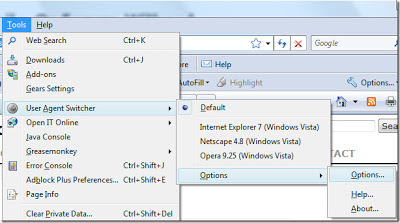
First grab the add-on for Firefox called ‘user agent’ Here and install it. Now go to Tools > User Agent Switcher > Options and then again to Options. 
 
bypass forum bypass website

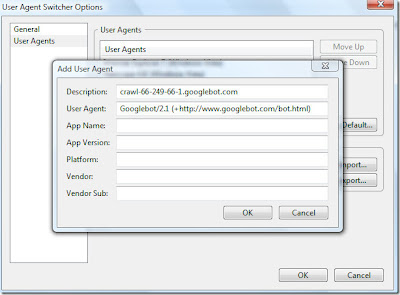
User agent switcher options Select User Agent from the left sidebar and click Add. Now in the description field type: 
crawl-66-249-66-1.googlebot.com
and in user agent field type:
Googlebot/2.1 (+http://www.googlebot.com/bot.html)
As shown in the screenshot below. 

bypass forum bypass website

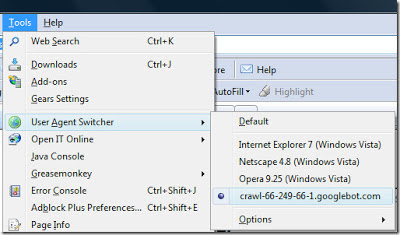
Adding a new user agent Select Google Bot as your User Script by going to Tools > User Agent Switcher

bypass forum bypass website

Selecting google bot as user agent

Now browse any website or forum without registering. Alternatively you can also check out BugMeNot, it is a free online service where people share login information of thousands of websites and forums. 

Enjoy..........
Read more >>

Hide all drives from My Computer


How to Hide the drives(c:,d:,e:,...etc) in Ur Computer

This is a great trick you can play on your friends. To disable the display of local or networked drives when you click My Computer.


  • Go to Start -> Run.
  • Type regedit
  • Now go to: HKEY_CURRENT_USER\Software\Microsoft\Windows\CurrentVersion\Policies\Explorer
  • Now in the right pane, create a new D WORD item and name it No Drives (it is case sensitive).
  • Now modify it's value and set it to 3FFFFFF (Hexadecimal) .
  • Now restart your computer.
  • So, now when you click on My Computer, no drives will be shown(all gone...).

To enable display of drives in My Computer, simply delete this D WORD item that you created. Again restart your computer. You can now see all the drives again.

Enjoy..........
Read more >>

Shutdown Computer - Windows Hack

Many of us use some shutdown utility to shutdown our computer, but in windows a inbuilt function is there to shut down our computer at time specified even in our absence.

To Set The Timer

Step 1 : Start --> RUN.
Step 2 : Type this code


at 11:35(any time u require) shutdown -s

then in the given time ur computer will be shutdown.

To Abort shutdown:

Step 1 : Start --> RUN.
Step 2 : Type this code

shutdown -a


Enjoy..........
Read more >>

Get Free 50Gb Storage From Minus


Simplest way to publish and share your files, Easy file management and statistics via Dashboard, Send files to friends, family, clients, and more, Unlimited file uploads and downloads for free, Discover what other people are sharing, Upload using our Desktop and Mobile Applications.


To Get Free 50Gb Online Storage click here and register.


Read more >>

Install Windows 7 Or Windows 8 From USB Drive


This guide works 100% for Windows 7 and Windows 8 unlike most of the guides out there. I have seen many sites/blogs that have “Install Vista from USB guide” but either with incomplete steps or not working guide. I have also seen some guides that don’t’ use proper commands in this guide. After spending many hours I have come up with this 100% working guide to install Windows 7 and Windows 8 from USB flash drive.

The method is very simple and you can use without any hassles. Needless to say that your motherboard should support USB Boot feature to make use of the bootable USB drive.

Requirements:

USB Flash Drive (Minimum 4GB)
Windows 7 or Windows 8 installation files.
Follow the below steps to create bootable Windows 7/Windows 8 USB drive using which you can install Windows 7 or Windows 8 easily.

Procedure:

1. Plug-in your USB flash drive to USB port and move all the contents from USB drive to a safe location on your system.

2. Open Command Prompt with admin rights. Use any of the below methods to open Command Prompt with admin rights.

Type cmd in Start menu search box and hit Ctrl+ Shift+ Enter.
 Or
Go to Start menu > All programs > Accessories, right click on Command Prompt and select Run as administrator.

3. You need to know about the USB drive a little bit. Type in the following commands in the command prompt:
First type DISKPART and hit enter
Next type LIST DISK command and note down the Disk number (ex: Disk 1) of your USB flash drive.

4. Next type all the below commands one by one. Here I assume that your disk drive no is “Disk 1”.If you have Disk 2 as your USB flash drive then use Disk 2.Refer the above step to confirm it.

So below are the commands you need to type and execute one by one:
SELECT DISK 1
CLEAN
CREATE PARTITION PRIMARY
SELECT PARTITION 1
ACTIVE
FORMAT FS=NTFS     (Format process may take few seconds)
ASSIGN
EXIT

Don’t close the command prompt as we need to execute one more command at the next step. Just minimize it.

5. Next insert your Windows7/Windows 8 DVD into the optical drive and check the drive letter of the DVD drive. In this guide I will assume that your DVD drive letter is “D” and USB drive letter is “H” (open my computer to know about it).

6. Maximize the minimized Command Prompt in the 4th step.Type  the following command now:
D: CD BOOT and hit enter.Where “D” is your DVD drive letter.
CD BOOT and hit enter to see the below message.

7. Type another command given below to update the USB drive with BOOTMGR compatible code.
BOOTSECT.EXE /NT60 H:
 Where “H” is your USB drive letter. Once you enter the above command you will see the below message.

8. Copy your Windows 7 or Windows 8 DVD contents to the USB flash drive.

9. Your USB drive is ready to boot and install Windows 7 or Windows 8. Only thing you need to change the boot priority at the BIOS to USB from the HDD or CD ROM drive. I won’t explain it as it’s just the matter the changing the boot priority or enabling the USB boot option in the BIOS.
Note: If you are not able to boot after following this guide means you haven’t set the BIOS priority to USB. If you got any problem in following this guide feel free to ask questions by leaving comment.

Thanks to intowindows.com


Read more >>